Android symbols help you understand what is happening on your phone without opening every app or setting. From Wi-Fi and battery indicators to notification icons, privacy alerts, and unfamiliar triangles with arrows, each symbol can provide useful information about your device.
If you are searching for Android symbols and meanings, this guide covers common icons found on Samsung Galaxy, Google Pixel, Xiaomi, Redmi, Motorola, and other Android phones. You will also find copy-and-paste symbols, keyboard characters, and practical tips for identifying unfamiliar icons.
The exact appearance of an icon depends on your phone manufacturer, Android version, and enabled features. Use the symbol lists below as a starting point, then check your phone’s notification panel or settings whenever you need to confirm an icon’s precise meaning.
Android Symbols Meaning List
Android uses system icons and app notification icons to display information about connectivity, battery life, security, sound, and other functions. Some icons remain visible in the status bar, while others appear only when a feature is active or you open the notification panel.
Here is a useful Android symbols meaning list for everyday reference.
| Symbol or Label | Name | Common Meaning |
| 📶 | Wi-Fi symbol | Represents wireless network connectivity |
| ▰ | Signal bars | Shows mobile network reception |
| 4G | 4G network | Indicates a supported 4G mobile connection |
| 5G | 5G network | Indicates a supported 5G mobile connection |
| 🔋 | Battery | Shows remaining battery power |
| ⚡ | Charging symbol | Commonly represents charging |
| ✈ | Airplane mode | Indicates that Airplane mode is enabled |
| 🔕 | Silent mode | Commonly represents muted notifications |
| 🔔 | Bell | Represents alerts or notification settings |
| ⏰ | Alarm clock | Represents an alarm or scheduled alert |
| 📍 | Location pin | Represents location or navigation |
| 🎧 | Headphones | Represents audio equipment or listening |
| 🔒 | Lock | Represents security or a locked state |
| 🔄 | Circular arrows | Often represents syncing or refreshing |
| ⬇ | Down arrow | Commonly represents downloading |
| ⬆ | Up arrow | Commonly represents uploading |
| ⚠ | Warning sign | Represents a warning or caution |
| ✓ | Check mark | Represents confirmation or completion |
| ✕ | Cross | May represent closing, rejection, or cancellation |
These are illustrative text characters and emoji, not exact reproductions of every Android interface icon. Actual system icons often use custom graphics that look different from the symbols shown here.
Network And Connectivity Icons
Network symbols tell you how your phone connects to the internet and other devices.
- Wi-Fi: Shows the status of a wireless network connection.
- Mobile signal bars: Show cellular reception strength.
- 4G, LTE, And 5G: Identify the mobile network technology or connection indicated by your device.
- Bluetooth: Indicates that Bluetooth is enabled or that a connected-device feature is active, depending on the icon.
- Airplane mode: Shows that Airplane mode is enabled. Wi-Fi or Bluetooth may still be available if manually re-enabled.
- VPN: A key-shaped or similar indicator may represent an active VPN connection.
A Wi-Fi icon does not always guarantee internet access. Some phones can remain connected to a router even when that network has no working internet connection.
Battery And System Icons
Battery and system indicators help you monitor your phone’s current condition.
- Battery outline: Shows the remaining charge.
- Battery with a lightning bolt: Usually indicates that the phone is charging.
- Power-saving indicator: May appear when a battery-saving feature is enabled.
- Alarm icon: Indicates a scheduled alarm.
- Do Not Disturb: Shows that notifications or interruptions may be limited.
- Location indicator: May appear when location services are being used.
- Privacy indicator: On supported Android versions, a green indicator can signal camera or microphone access.
For unfamiliar symbols, open the notification shade by swiping down from the top of your screen. This often reveals additional details about the feature or notification.
Android Symbols Download
You can copy many Android-related text symbols directly from a symbol list without downloading a separate application. These characters are useful for messages, social media profiles, website content, notes, and decorative text.
Android Symbols To Copy And Paste
Select a symbol from the table and copy it into a compatible application.
| Category | Copy And Paste Symbols |
| Check marks | ✓ ✔ ☑ ✅ |
| Cross symbols | ✕ ✖ ✗ ❌ |
| Stars | ★ ☆ ✦ ✧ ✨ |
| Hearts | ♥ ♡ ❤ ❥ |
| Arrows | ← → ↑ ↓ ↔ ↕ ➜ ➤ |
| Circles | ○ ● ◉ ◎ ◌ |
| Squares | □ ■ ▪ ▫ ◻ |
| Triangles | △ ▲ ▽ ▼ ◁ ▷ |
| Warning symbols | ⚠ ⛔ 🚫 |
| Information symbols | ⓘ ℹ |
| Settings-related text | ⚙ ⌁ |
| Mathematical symbols | ∞ ≠ ≈ ≤ ≥ ± |
| Decorative symbols | ❖ ❋ ※ ✧ ❀ |
Some characters in this table are emoji, while others are Unicode text symbols. Their appearance can vary between fonts, applications, and devices.
How To Save Android Symbols
You have several options if you frequently use special characters.
- Copy and paste: Select a symbol, copy it, and paste it into a message, document, or website.
- Save a reference list: Store your favorite characters in Google Keep, Samsung Notes, or another notes app.
- Bookmark a symbol page: Keep a copy-and-paste page in your browser for quick access.
- Use a symbol keyboard: Install a reputable keyboard or character-map application if you need a larger selection.
- Use the clipboard: On supported keyboards, recently copied symbols can be accessed through the clipboard panel.
A separate download is usually unnecessary for basic Unicode symbols. If you install a third-party keyboard, review its permissions and privacy information before using it.
Samsung Phone Symbols Meaning
Samsung Galaxy phones use Android system indicators alongside icons designed for Samsung’s One UI interface. The symbols may differ between Galaxy S, Galaxy A, Galaxy Z, and older devices.
Samsung’s official support documentation identifies common indicators for mobile networks, Wi-Fi, Bluetooth, location, calls, alarms, battery status, Airplane mode, Data Saver, VPN, and Mobile Hotspot. Their appearance can vary by model, software version, and network provider.
Common Samsung Status Icons
| Icon Or Label | Meaning |
| Wi-Fi fan | Wi-Fi connection status |
| Mobile signal bars | Cellular reception |
| 4G, LTE, Or 5G | Mobile network connection |
| Battery With Bolt | Battery charging |
| Bluetooth Logo | Bluetooth status |
| Location Pin | Location services or access |
| Bell With A Line | Silent or muted mode |
| Crescent Moon | Do Not Disturb or a related mode |
| VPN Or Key Indicator | A VPN connection may be active |
| Airplane | Airplane mode is enabled |
| Alarm Clock | An alarm is scheduled |
| Warning Triangle | A warning or caution may require attention |
| Battery Saver Indicator | Power-saving mode is active |
| Hotspot Indicator | Mobile internet sharing is enabled |
| Cast Indicator | Screen casting is active |
Some Samsung features, such as S Pen connectivity, Secure Folder, Quick Share, NFC, and screen recording, may also have their own indicators or Quick Settings controls.
How To Identify An Unknown Samsung Symbol
If a new symbol appears on your Galaxy phone, follow these steps:
- Swipe down from the top of the screen to open the notification panel.
- Look for notifications that may explain the icon.
- Swipe down again to expand Quick Settings and review active features.
- Open Settings and search for the feature name if you recognize part of the icon.
- Consult Samsung support for your exact model if the meaning remains unclear.
Samsung icons can change with One UI updates. Therefore, an icon on a newer Galaxy phone may look different from the same feature on an older device.
Android Symbols Meaning
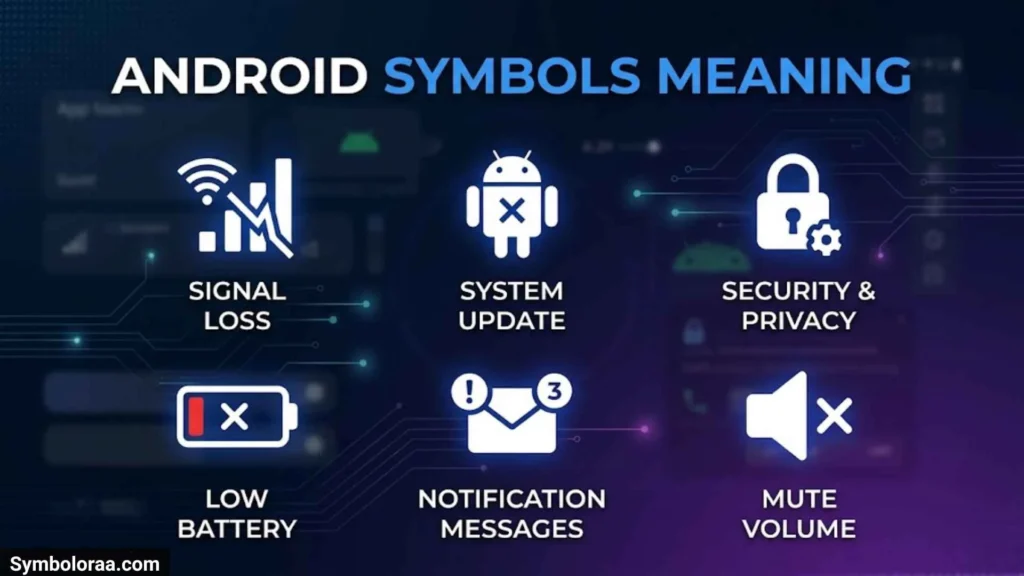
Android symbols can be grouped into categories according to what they communicate. Understanding these categories is useful when you encounter an unfamiliar icon or need to troubleshoot a phone setting.
Notification Symbols
Notification symbols alert you to messages, updates, and activity from installed applications.
Common examples include:
- Message icon: Indicates a new message or a messaging-related notification.
- Missed-call icon: Alerts you to a missed phone call.
- Download arrow: May indicate an active download or completed file transfer.
- Email icon: Represents a new email notification.
- Update indicator: May notify you about an available update.
- Screenshot indicator: Can appear when a screenshot has been captured or is being processed.
Notification icons often belong to individual apps rather than Android itself. Tap the notification or expand the notification panel to find out which application generated it.
Privacy And Security Symbols
Privacy indicators can help you understand when an application accesses sensitive features.
| Indicator | Possible Meaning |
| Green privacy indicator | Camera or microphone access on supported Android versions |
| Location icon | Location access or location-related activity |
| VPN indicator | An active VPN connection |
| Lock symbol | A locked feature, secure connection, or security-related function |
| Security warning | A possible issue requiring attention |
If you see a camera or microphone privacy indicator, check your phone’s privacy dashboard or permission manager to identify the app responsible. The precise steps vary by Android version.
Sound And Display Symbols
Other indicators relate to how your phone behaves.
- Silent mode: Ringtones or other sounds may be muted.
- Vibration mode: Calls or notifications may use vibration.
- Do Not Disturb: Interruptions may be restricted according to your settings.
- Auto-rotate: The screen can rotate when you change the phone’s orientation.
- Flashlight: The camera flash is being used as a light.
- Cast: The screen or supported media may be displayed on another device.
An icon’s meaning depends on its design and location. For example, a bell symbol in an app can represent notification settings, while a bell-shaped status indicator may represent a device sound mode.
Android Symbols At Top Of Phone Screen
The top of an Android phone contains the status bar. It provides quick information about the device, including battery level, network reception, time, and selected notifications.
Some icons appear only when their related feature is active. Others may be hidden when the status bar has limited space.
Common Icons At The Top Of An Android Phone
| Symbol Or Label | Meaning |
| Time | Current time |
| Battery | Remaining charge |
| Charging Bolt | Charging status |
| Wi-Fi | Wireless connection status |
| Signal Bars | Mobile reception |
| 4G, LTE, 5G | Network technology |
| Bluetooth | Bluetooth status |
| Alarm | Scheduled alarm |
| Airplane | Airplane mode |
| VPN Indicator | VPN connection |
| Privacy Indicator | Camera or microphone access on supported devices |
| Notification Dot | Additional notifications or hidden icons, depending on the interface |
The position and appearance of these indicators differ across Android manufacturers. On many phones, app notification icons appear toward the left, while battery and connectivity indicators appear toward the right.
Why Do New Symbols Appear On The Status Bar?
A new symbol may appear after you enable a feature, install an app, connect a Bluetooth device, start a screen recording, or receive a notification. A software update may also change the icons shown on your phone.
To investigate an unfamiliar icon, swipe down from the top of the screen and review the notifications. If necessary, open Quick Settings and check which functions are enabled.
If the symbol appeared after installing an unfamiliar application, review that app’s permissions and notification settings. Avoid disabling system features randomly because some icons indicate functions that your phone needs.
Android Symbols Keyboard
The Android keyboard includes letters, numbers, punctuation, emoji, and special characters. Its layout depends on the keyboard application and language settings.
Gboard and Samsung Keyboard commonly provide a symbols panel through a key such as ?123 or 123. Additional characters may appear after opening another symbols page.
Common Android Keyboard Symbols
| Symbol | Name | Common Use |
| @ | At Sign | Email addresses and mentions |
| # | Number Sign | Hashtags and labels |
| & | Ampersand | Represents “and” |
| % | Percent Sign | Percentages |
| + | Plus Sign | Addition |
| = | Equals Sign | Mathematical equality |
| / | Slash | Dates and alternatives |
| Backslash | Technical text and file paths | |
| © | Copyright Sign | Copyright notices |
| ® | Registered Sign | Registered trademarks |
| ™ | Trade Mark Sign | Trademark identification |
| ° | Degree Sign | Temperature and angles |
| € | Euro Sign | Euro currency |
| £ | Pound Sign | Pound currency |
| ₹ | Indian Rupee Sign | Indian currency |
| ¥ | Yen Sign | Japanese yen or Chinese yuan, depending on context |
How To Type Special Symbols On Android
Follow these steps to access symbols using your keyboard:
- Open a messaging app, browser search field, or notes application.
- Tap the text box to open the keyboard.
- Press ?123, 123, or the equivalent symbols key.
- Browse the punctuation and special characters.
- Open the additional symbols page if the character you need is not visible.
- Return to the letter keyboard when you finish.
If a symbol is unavailable, copy it from a Unicode symbol list and paste it into your text.
For example, you can copy these characters for use in messages or social media posts:
✓ ★ ♡ → ∞ © ™ °
Some characters may display differently depending on the font or app. If a character appears as a square or empty box, the application or font may not support its display correctly.
Top Bar Samsung Android Symbols
The top bar on a Samsung Galaxy phone displays system status information and selected notifications. It helps you monitor mobile reception, Wi-Fi, battery level, sound settings, and other active functions.
Samsung uses One UI, so its icons may look different from those on Google Pixel and other Android devices.
Samsung Top Bar Icons And Their Meanings
| Symbol Or Label | Common Meaning |
| Wi-Fi | Connected to a wireless network |
| Signal Bars | Cellular reception strength |
| 4G, LTE, 5G | Mobile network connection |
| Battery With Bolt | Battery charging |
| Bluetooth | Bluetooth feature status |
| Location | Location-related activity |
| Alarm | An alarm is set |
| Silent Mode | Sounds are muted |
| Vibration | Vibration mode is active |
| Airplane Mode | Airplane mode is enabled |
| VPN | A VPN connection is active |
| Mobile Hotspot | Mobile data sharing is enabled |
| Cast | Screen casting is active |
| Data Saver | Mobile data usage is being restricted |
| Do Not Disturb | Notifications or interruptions may be limited |
Not every icon remains visible all the time. Some indicators appear only while a feature is active, and others become visible after you expand the notification panel.
How To Manage The Samsung Status Bar
Open Settings and look for Notifications, Status bar, or the settings for the relevant feature. Available options depend on your phone model and software version.
If you want to understand an icon rather than hide it, check the notification shade first. The expanded panel can reveal more information about active functions.
You can also search within Settings for terms such as “VPN,” “Data Saver,” “Location,” or “Do Not Disturb.” This is often quicker than browsing every menu manually.
Android Symbols Top Right
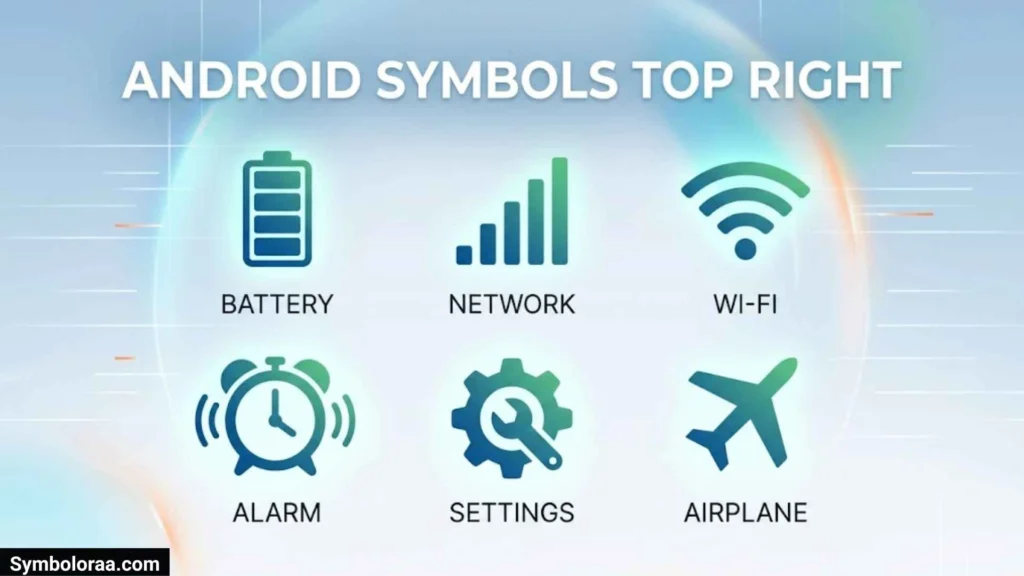
The top-right corner of an Android screen commonly displays battery, network, and connectivity indicators. Depending on the phone, the time and notification icons may be arranged differently.
Here are some common icons you may see in that area.
- Battery symbol: Displays the remaining battery level.
- Battery with lightning: Usually indicates that the phone is charging.
- Wi-Fi symbol: Shows wireless network status.
- Mobile signal bars: Show cellular reception.
- 4G, LTE, or 5G: Indicates the mobile network connection.
- Bluetooth indicator: Shows Bluetooth status on interfaces that display it.
- Airplane symbol: Indicates Airplane mode.
- Alarm icon: May show that an alarm is scheduled.
- VPN indicator: May show that a VPN connection is active.
What Does A Dot At The Top Of The Screen Mean?
A small dot can have different meanings depending on the phone and Android version. It may indicate that additional notifications or status icons are hidden because the status bar has limited space.
On supported Android versions, a green privacy indicator can signal camera or microphone access. Do not assume that every dot represents the same feature.
Swipe down from the top of the screen to view more information. If the indicator is privacy-related, check the privacy dashboard or permission manager to identify the application using the feature.
Why Is A Status Icon Missing?
Some apps use full-screen mode, temporarily hiding the status bar. Other icons may disappear when a feature is turned off or when notifications are cleared.
If you cannot see the usual icons, return to the home screen or swipe down from the top edge. This often restores access to the status bar and notification panel.
Google Android Symbols
Google Android symbols can refer to system icons on Google Pixel phones, Google app icons, or Unicode characters used in messages and documents. These categories serve different purposes and should not be confused.
Pixel phones use Google’s Android interface, while individual Google applications have their own designs and notification icons.
Common Google Android System Symbols
| Icon Or Label | Meaning |
| Wi-Fi | Wireless network status |
| Cellular Signal | Mobile reception |
| Battery | Remaining charge |
| Charging Bolt | Battery charging |
| Location Indicator | Location access or activity |
| Privacy Indicator | Camera or microphone access on supported versions |
| VPN Or Key Indicator | A VPN connection may be active |
| Alarm | A scheduled alarm |
| Do Not Disturb | Notifications may be limited |
| Cast | Supported media or screen casting |
The Google Maps icon, Google Photos icon, and Google Play logo belong to their respective applications. They are not universal Android status indicators.
Google And Unicode Symbols For Copy And Paste
The following characters are useful for website content, profile descriptions, messages, and decorative text.
| Symbol | Unicode Name |
| ✓ | Check Mark |
| ★ | Black Star |
| ☆ | White Star |
| → | Rightwards Arrow |
| ← | Leftwards Arrow |
| ↑ | Upwards Arrow |
| ↓ | Downwards Arrow |
| © | Copyright Sign |
| ™ | Trade Mark Sign |
| ® | Registered Sign |
| ∞ | Infinity |
| ≈ | Almost Equal To |
| ≠ | Not Equal To |
| ≤ | Less-Than Or Equal To |
| ≥ | Greater-Than Or Equal To |
These are Unicode characters, not Google-exclusive symbols. You can copy them into compatible apps, but their visual appearance may vary by font and platform.
Android Symbols Triangle With Arrows
A triangle with arrows can be confusing because several system icons, app graphics, and text characters look similar at small sizes. Its meaning depends on the actual design, the phone manufacturer, and where it appears.
For example, an icon related to data transfer may use directional arrows, while a warning symbol may use a triangle containing an exclamation mark. A text character such as ▲ is not automatically an Android status icon.
Triangle And Arrow Symbols You Can Copy
| Symbol | Name | Common Use |
| ▲ | Black Up-Pointing Triangle | Direction or emphasis |
| △ | White Up-Pointing Triangle | Text and geometric notation |
| ▼ | Black Down-Pointing Triangle | Direction or dropdowns |
| ▽ | White Down-Pointing Triangle | Geometric notation |
| ◀ | Black Left-Pointing Triangle | Navigation or direction |
| ▶ | Black Right-Pointing Triangle | Play or direction |
| ⇅ | Up Down Arrow | Represents movement in both directions |
| ↕ | Up Down Arrow | Vertical movement or comparison |
| ↔ | Left Right Arrow | Horizontal movement or exchange |
| ⚠ | Warning Sign | Caution or alert |
| 🔺 | Red Triangle Pointed Up | Decorative or warning-related use |
These are actual text symbols or emoji, not guaranteed reproductions of the icons used by your phone.
What Does A Triangle With Arrows Mean On Android?
There is no single meaning for every triangle-and-arrow icon. It could belong to a network service, an application, a file-transfer feature, or another system function.
To identify it accurately:
- Take a screenshot while the icon is visible.
- Swipe down to open the notification panel.
- Check Quick Settings for active network or data-related functions.
- Notice whether the icon appears during downloads, mobile data use, or software updates.
- Search your manufacturer’s official support documentation using your phone model.
If you cannot identify the icon, share a screenshot and the exact phone model. Its shape, position, and surrounding icons can help distinguish it from similar-looking indicators.
Frequently Asked Questions
What do Android symbols at the top of the screen mean?
They usually indicate battery status, network connectivity, notifications, or active features such as Bluetooth, alarms, and Airplane mode. The exact meaning depends on your device and software version.
How can I identify an unknown symbol on my Samsung phone?
Swipe down from the top of your screen and inspect notifications and Quick Settings. If the icon remains unclear, check Samsung’s official support documentation for your Galaxy model.
Can I copy and paste Android symbols into messages?
Yes. You can copy Unicode characters such as ✓, ★, ♡, →, and ∞ into compatible messaging apps, social media posts, notes, and documents.
Why do Android symbols look different on different phones?
Manufacturers use different interface designs, and icons can change with software versions, themes, and settings. A Samsung Galaxy and a Google Pixel may therefore display different icons for similar functions.
What does a triangle with arrows mean on Android?
Its meaning depends on the exact icon and where it appears. It may relate to data activity, synchronization, or an app feature. A screenshot and phone model can help identify it.
Conclusion
Android symbols provide quick information about your phone’s battery, network connections, notifications, privacy features, and active settings. Learning their common meanings can help you understand unfamiliar indicators and find the right settings more quickly.
Samsung Galaxy, Google Pixel, and other Android phones share many system functions, but their icons and layouts can differ. When a symbol appears unexpectedly, check the notification panel and relevant settings before assuming that something is wrong.
For text, profiles, and website content, you can also use Unicode characters such as ✓, ★, ♡, →, and ∞. Keep a list of your favorite symbols for easy access, and use your phone model and a clear screenshot to identify unfamiliar status icons accurately.

I’m Madison Reed, a contemporary American author who writes about love, family, friendship, and second chances. I’m fascinated by the choices that shape our lives and the moments that change us forever. My goal is to create honest, emotional stories with characters readers can connect with long after finishing each book.
Three Books:
When We Find Our Way
The Things We Never Said
Summer in September